Supplier guide
QuoteParts is where MyZip sends you price requests for elevator and escalator spare parts and keeps your prices. It costs you nothing. This guide shows every way to give a price — pick the one that suits you, you can mix them freely.
MyZip sends you a request for quotation: a list of items with part numbers and quantities. For each item you give a price — or say that you cannot offer it. Your price becomes an offer: MyZip sees it at once, with your lead time, minimum quantity and validity date. Nobody else sees your prices.
| You have… | Best way |
|---|---|
| A request e-mail and a quotation ready in your system | Reply to the e-mail with the quotation attached |
| A request with a few items, several options per item | The request form |
| Prices for items MyZip works with, not only those asked today | The items list |
| Hundreds of prices in a spreadsheet | A price list |
Signing in
There is no password. Every request e-mail from MyZip has a button Quote in the form — it opens your cabinet signed in. The link works for 14 days.
Later, or from another computer, open quoteparts.net, enter the e-mail where the requests come to and press Send code. A 6-digit code comes to that e-mail; type it and press Sign in. The code works for 15 minutes.
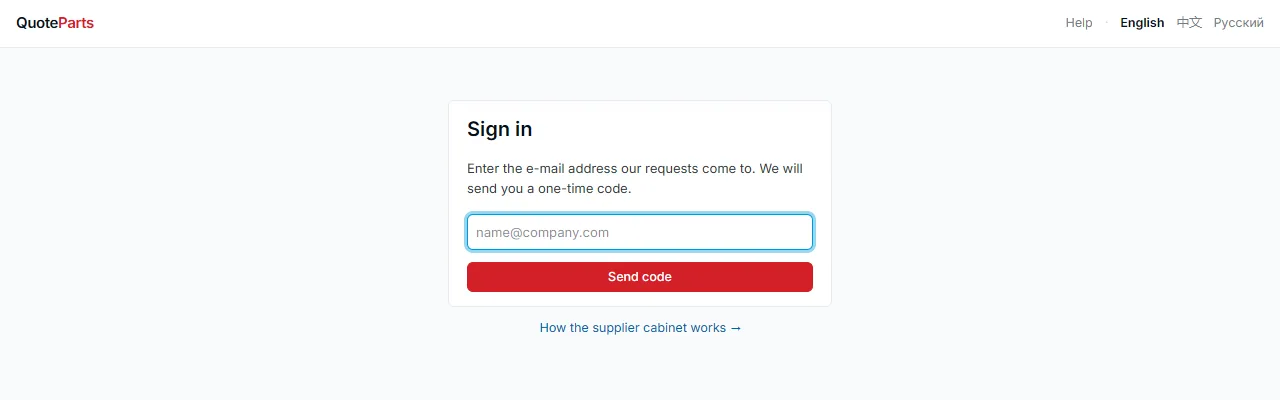
The cabinet speaks English, Chinese and Russian. Switch at the top right — the choice is remembered for your next visits, and MyZip's letters come to you in the same language.

MyZip's terms
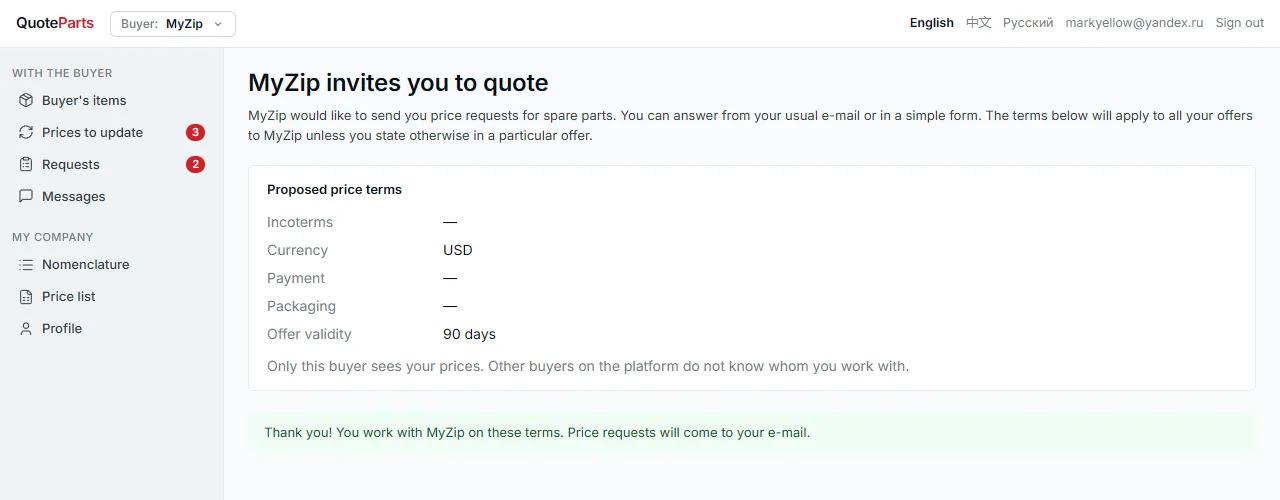
The first letter from MyZip is an invitation with the proposed terms: Incoterms, currency, payment, packaging and how long your prices stay valid. They apply to all your offers unless you say otherwise in a particular offer.
- Accept the terms — you are ready to quote;
- I propose other terms — write your terms, MyZip answers;
- Decline the invitation — MyZip will not send you requests.
1. Reply to the e-mail
The simplest way. A request letter from MyZip lists the items, part numbers and quantities. Simply reply to it, the way you always reply to MyZip.
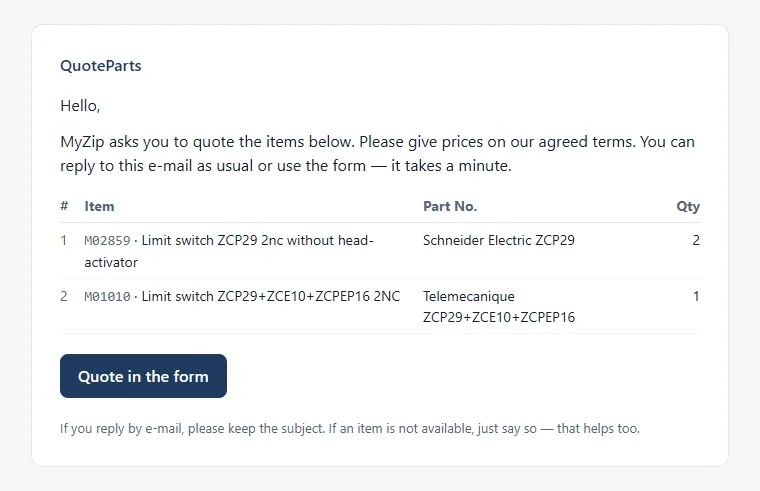
- Keep the subject — the code in square brackets (for example [QP-BYYRTW]) tells us which request you answer.
- For each item write the price per unit and the currency; lead time, minimum quantity and validity if you have them.
- A quotation as a PDF or Excel attachment is fine — we read the attachments too.
- An item you cannot offer — just say so («not available», «discontinued»). An analog or a copy — say what it is and give its brand and part number.
Your reply is read automatically: clear prices become your offers at once, doubtful ones MyZip checks before taking them. You can open the request in your cabinet later and see exactly what was recorded.
2. Answer a request in the form
All MyZip requests are under Requests. The tab To answer shows those where some items still wait for your price or decline.
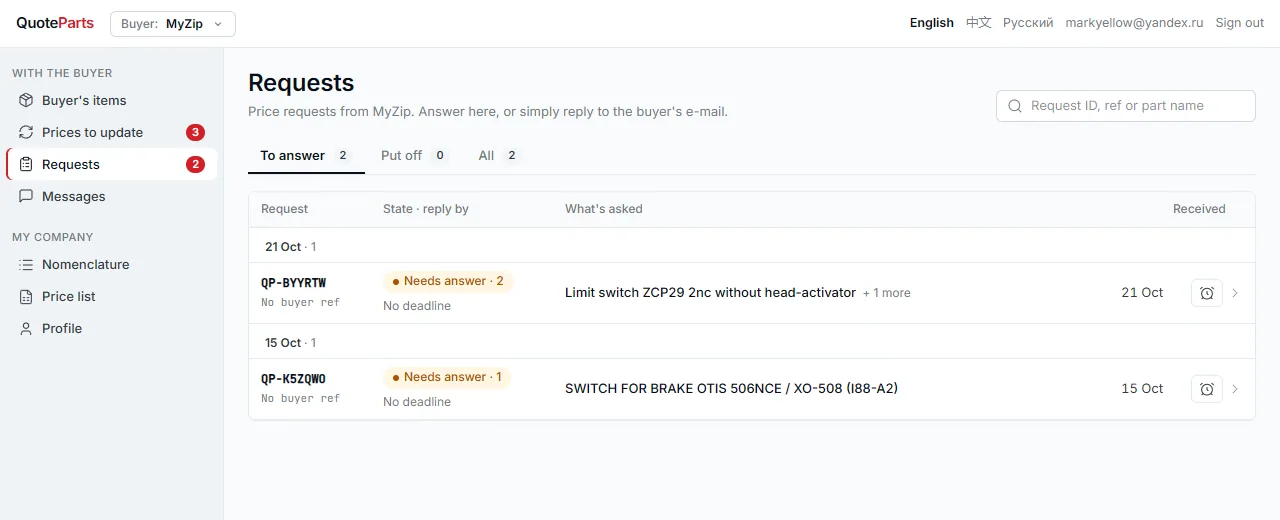
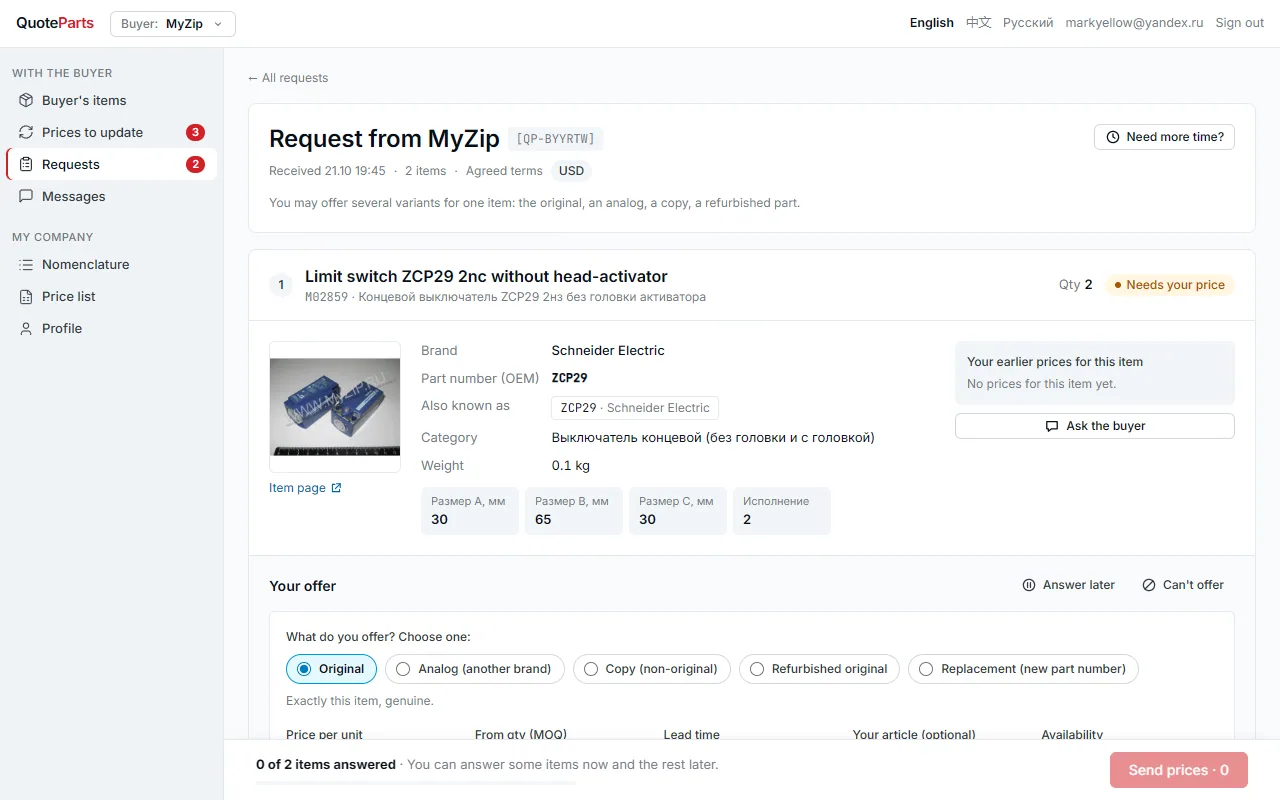
Open a request. Each item has its card: the name, the brand and part number, MyZip's photos and specifications, your earlier prices for it.
Give a price
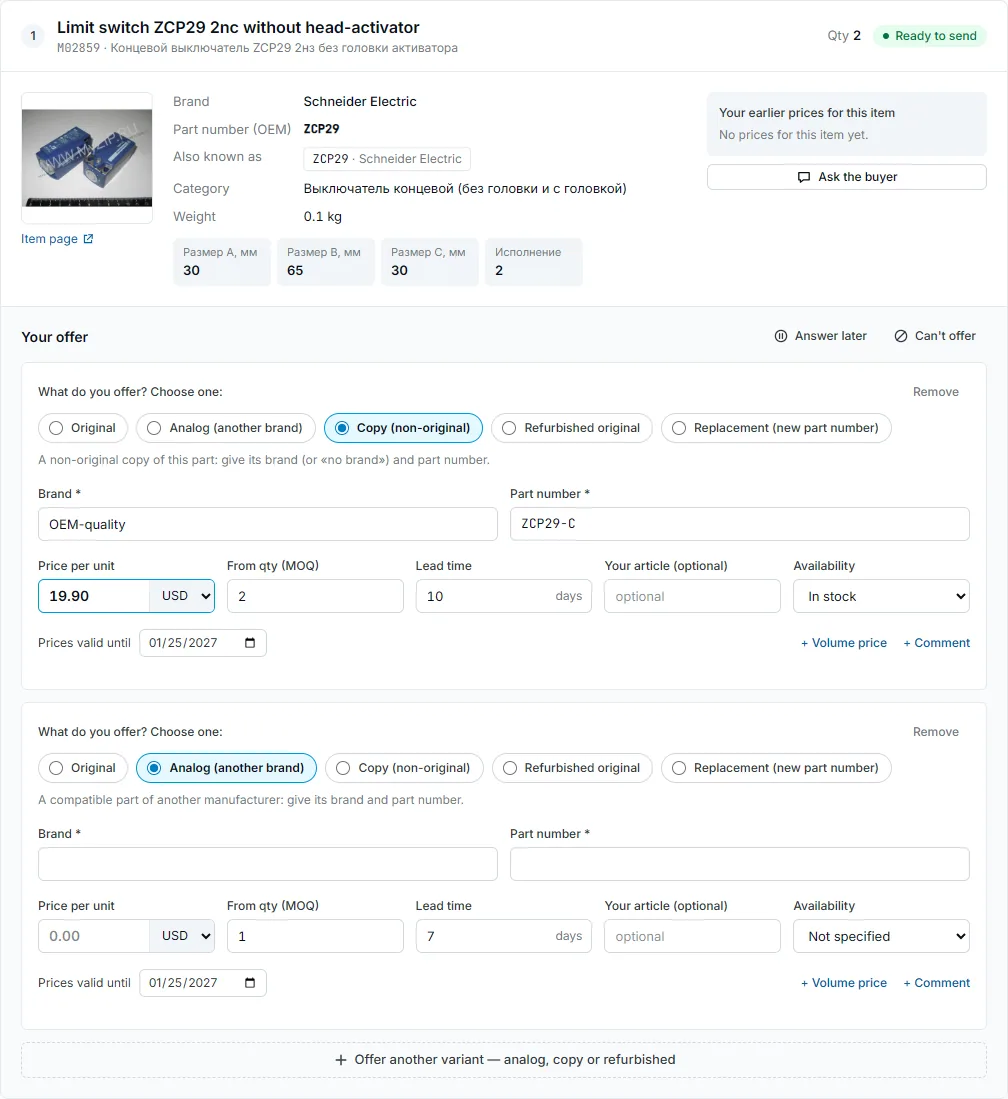
- Choose what you offer: Original, Analog (another brand), Copy (non-original), Refurbished original or Replacement (new part number). For an analog, a copy and a replacement give the brand and the part number.
- Type the price per unit and check the currency.
- Add the minimum quantity, the lead time in days, your own article and availability (in stock or made to order) — whatever you know.
- The validity date is filled in for you (90 days or as agreed with MyZip); change it if your price is valid for less.
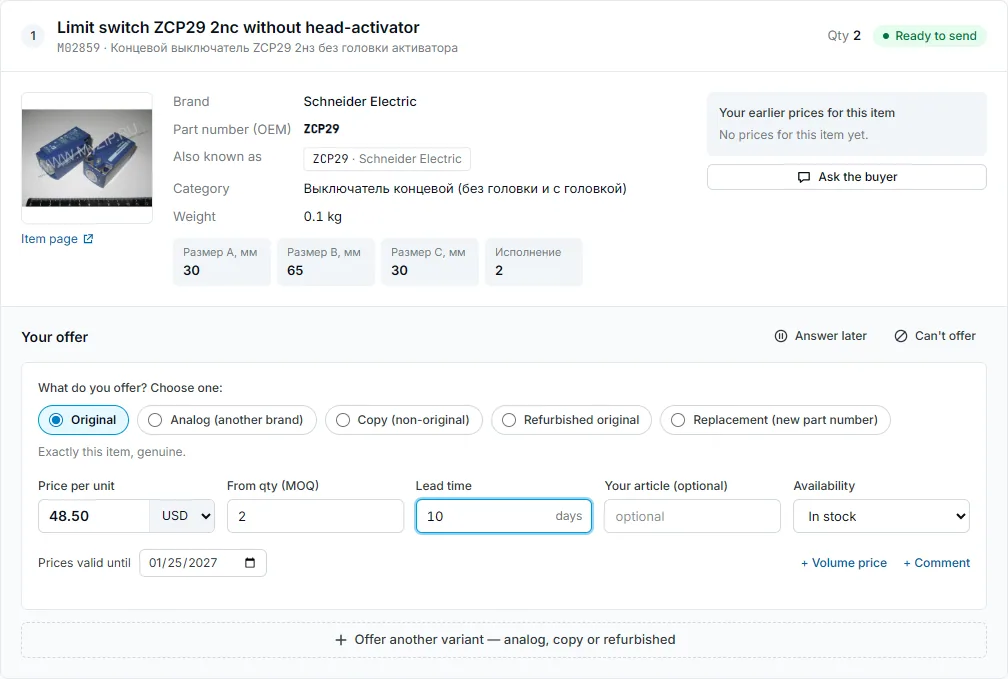
+ Volume price adds a second price for a larger quantity (for example 27.50 from 50 pcs). + Comment — a note for MyZip.
Several variants for one item
Have the original and a cheaper copy? Press Offer another variant — analog, copy or refurbished and fill in the second variant. Each variant becomes its own offer, MyZip compares them.
Cannot offer an item
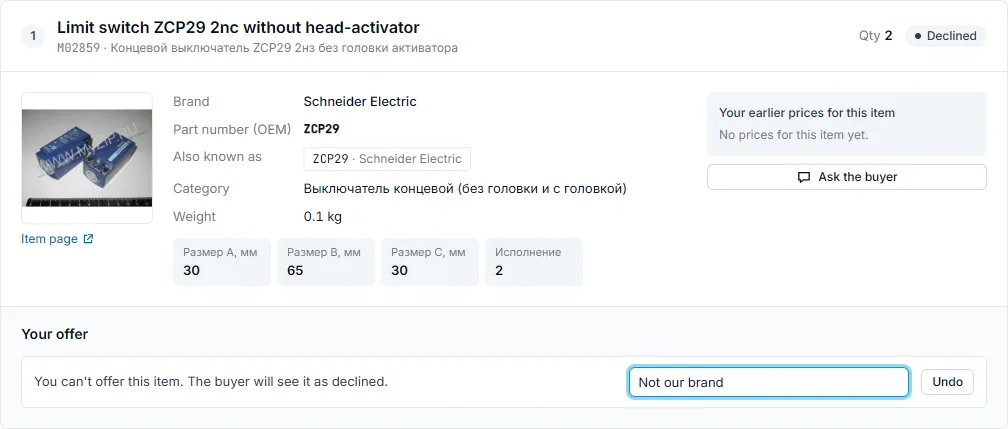
Press Can't offer on the item and, if you like, write why («not our brand»). This is a useful answer too: MyZip stops waiting for you. Undo brings the form back.
Need time to find the price
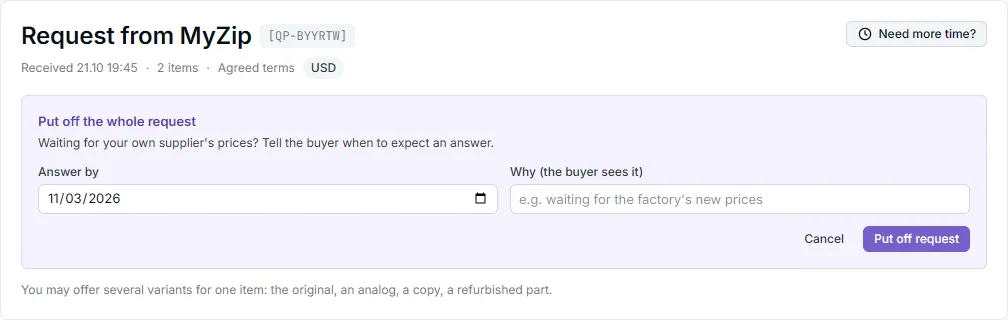
Answer later on an item, or Need more time? at the top for the whole request: choose the date and add a note for MyZip. MyZip sees that you are working on it, and we remind you on that date.
Ask MyZip
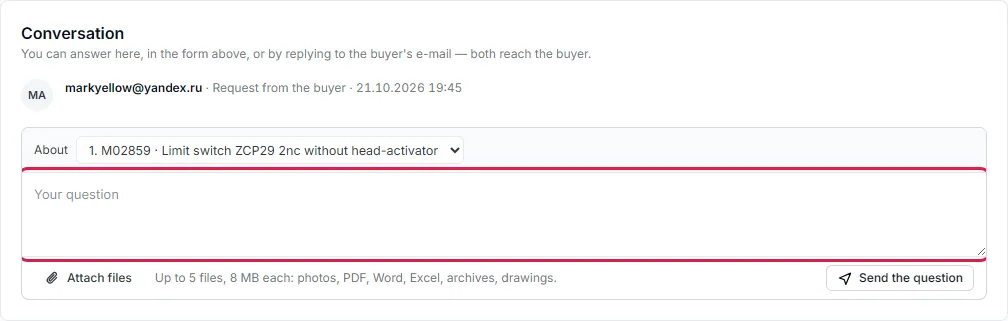
Not sure what exactly is needed (a size, a photo of the nameplate, the quantity)? Ask the buyer opens the conversation of the request: choose the item, write the question, attach files. MyZip's answer comes by e-mail and appears here.
Send
The bar at the bottom counts the items you have answered. Press Send prices · N — the prices go to MyZip at once. You do not have to answer everything at once: send what you have and come back for the rest.

3. Prices in the items list
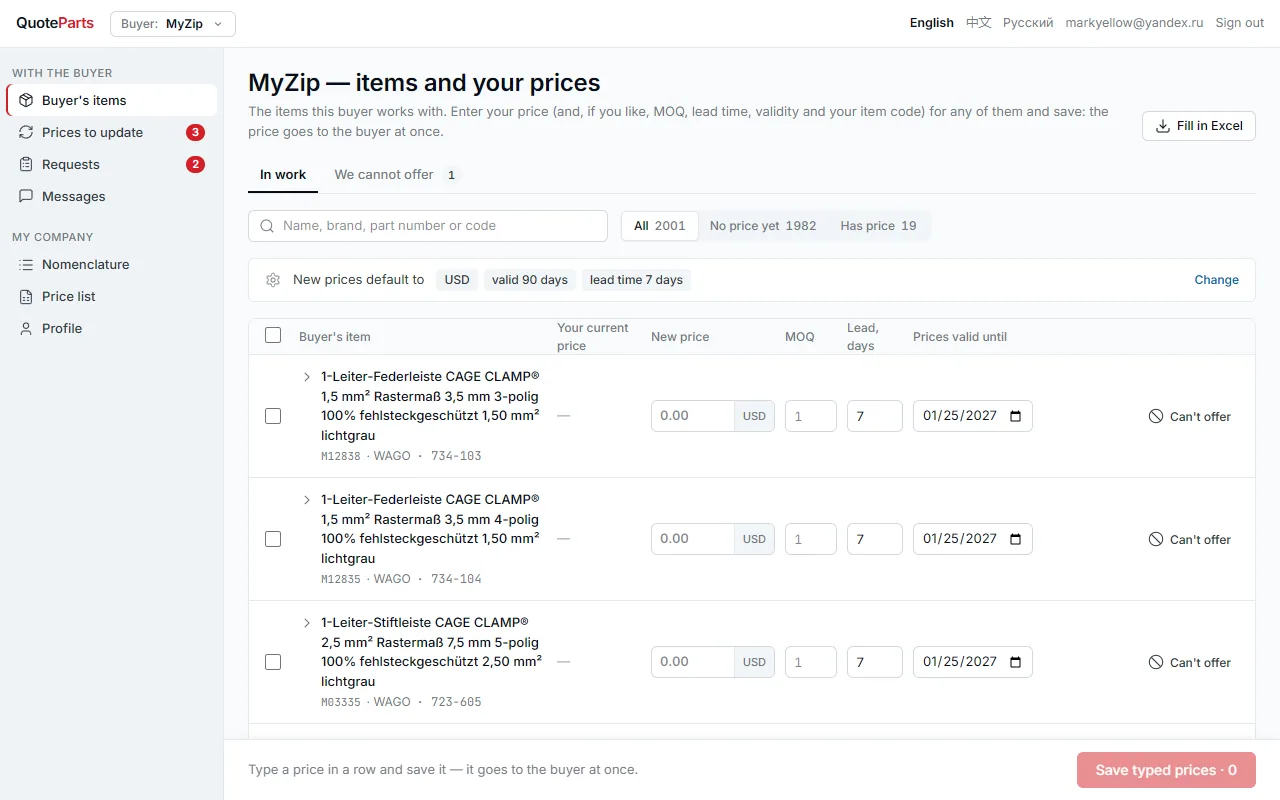
Buyer's items is the whole list of what MyZip works with — not only what is asked today. Giving prices here in advance means MyZip does not need to ask.
Type prices row by row
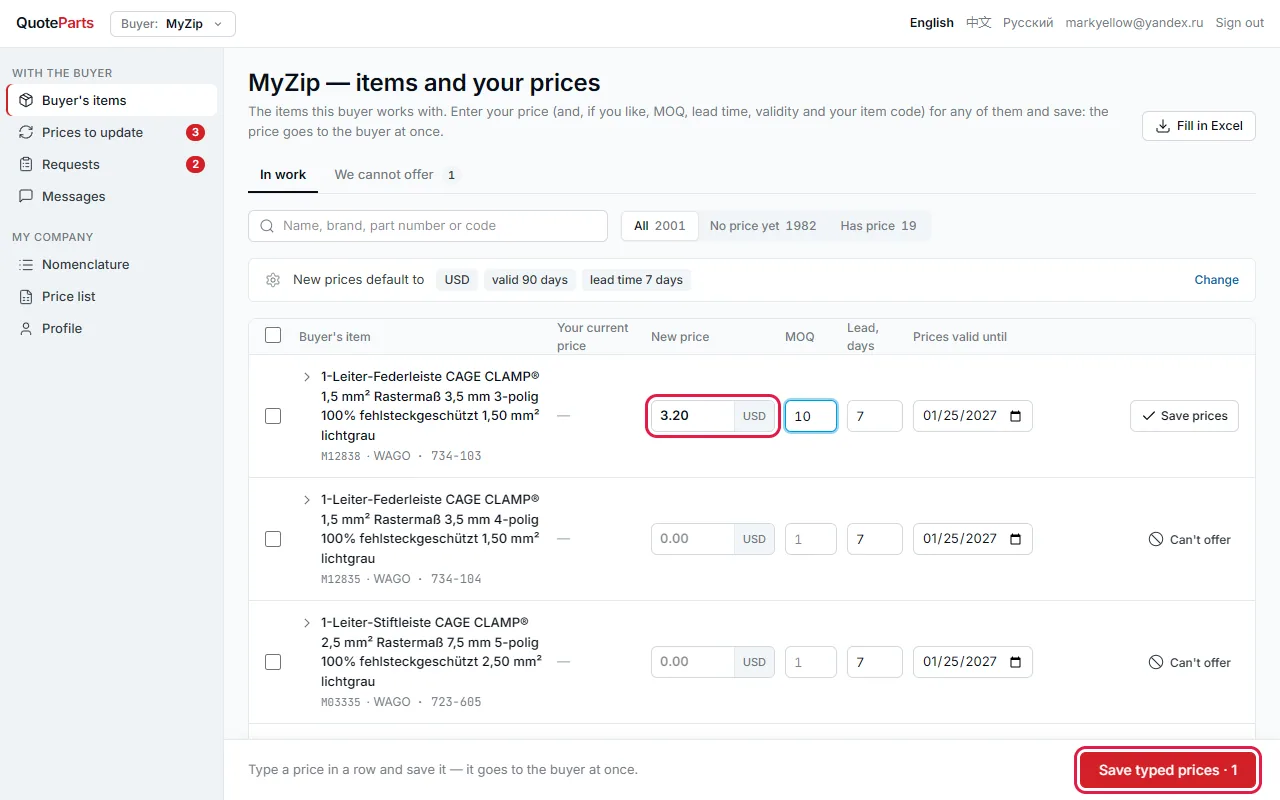
In a row type the new price, and if needed the MOQ, the lead time and the validity date. Save the row with Save prices (or Enter), or type many rows and press Save typed prices · N at the bottom once.
Defaults for new prices
Currency, validity and lead time for new rows come from the line «New prices default to…». Change them once — for example a lead time of 30 days instead of 7.

Several items at once
Tick rows and choose in the bottom bar: Answer later, Can't offer or Extend until a date (your prices are unchanged, only the validity moves).
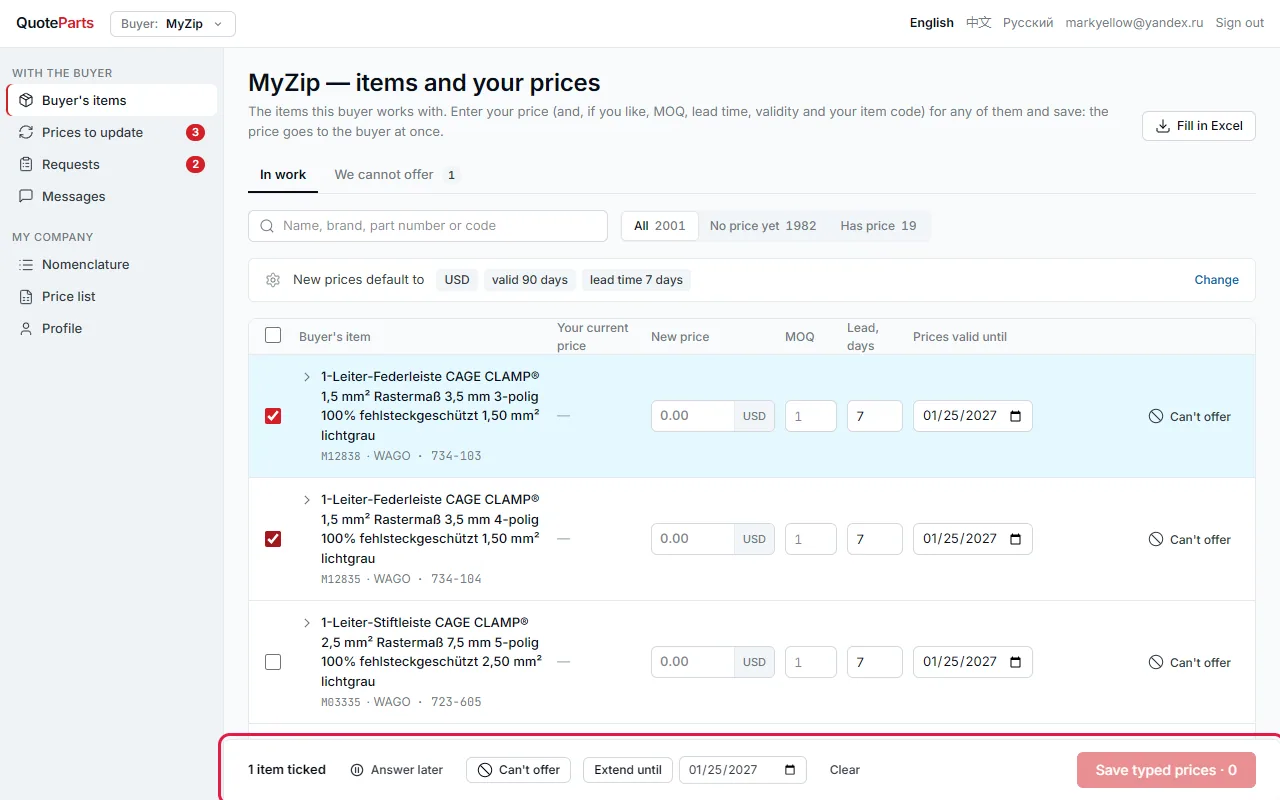
Items you cannot offer move to the tab We cannot offer; new requests for them are answered for you. Restore brings an item back.
Variants without leaving the list
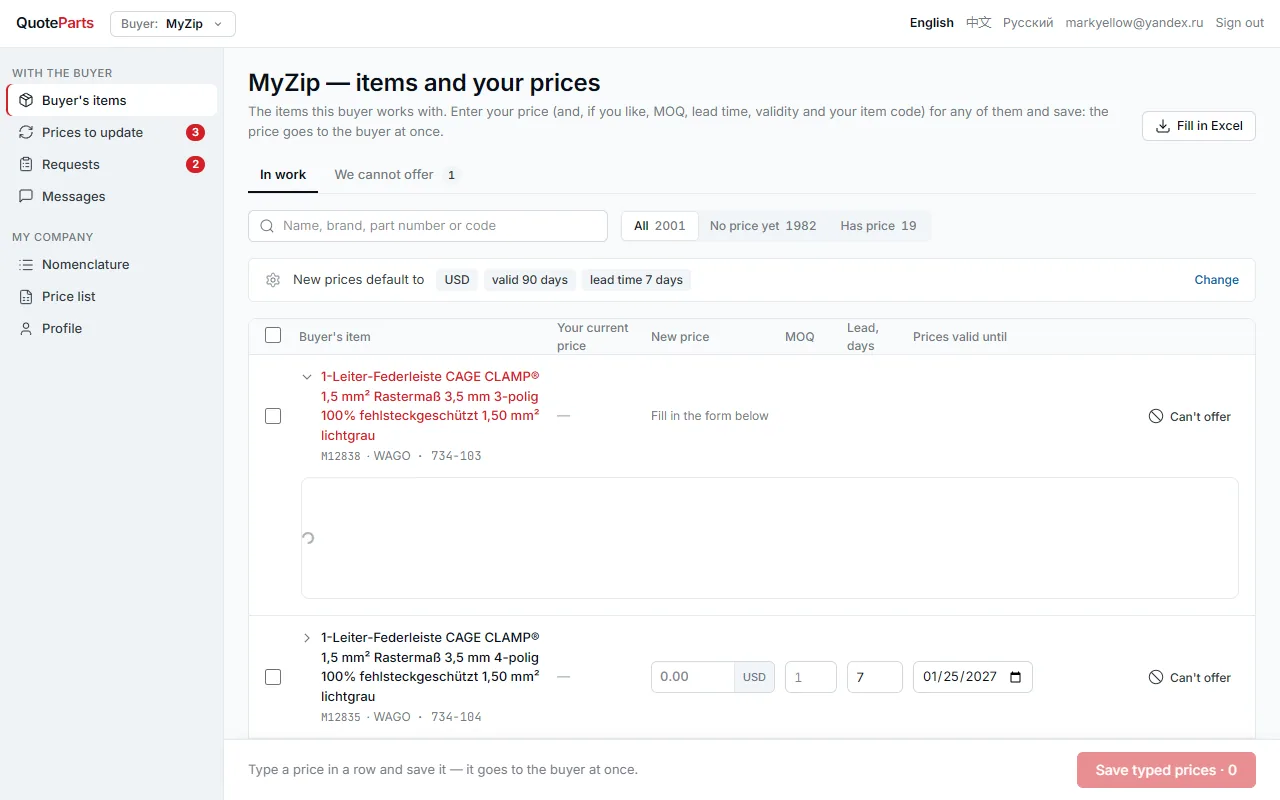
The arrow at the start of a row unfolds the item with the full price form — the same as on the request page: the kind of offer, a volume price, several variants.
4. The item page
The name of an item opens its page: all details and photos from MyZip, Give a price, your price history, the link to your own product and a question to MyZip.
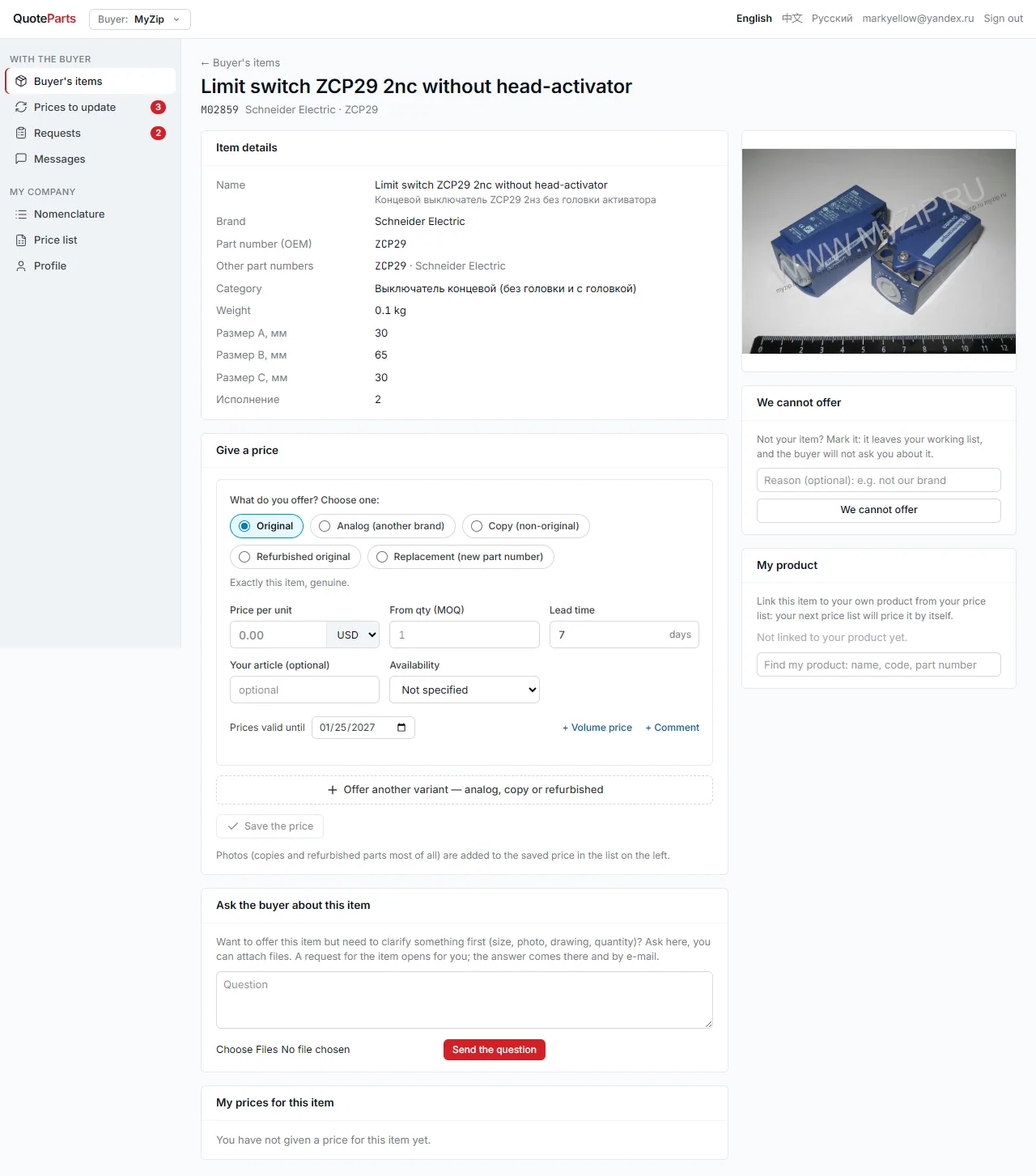
An example — an analog of another brand with a second price for 50 pcs and more. Press Save the price and the offer is with MyZip.
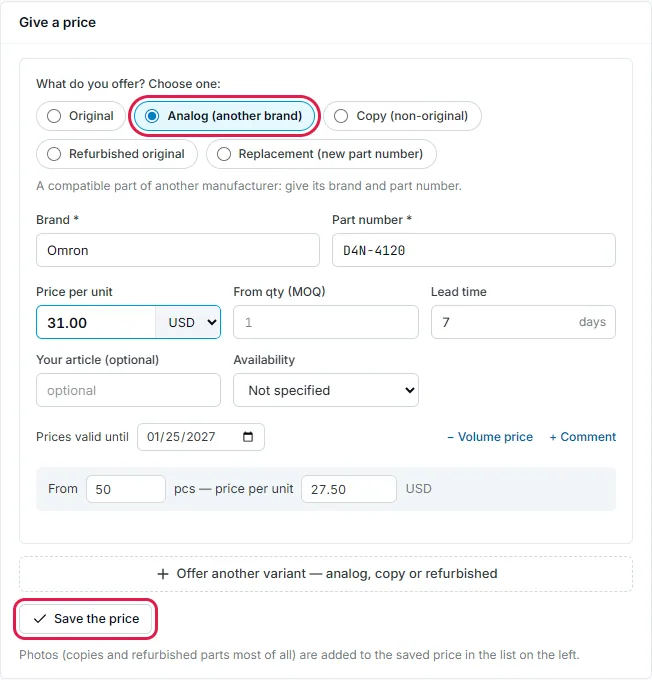
- Price unchanged — extend until: the same price and terms with a new validity date, in one click.
- My product: link the item to your own product once — next time your price list prices it by itself.
- Photos: after saving you can add up to 8 photos to the offer — most useful for copies and refurbished parts.
- Ask the buyer about this item: a question to MyZip with files; a request for the item opens for you, the answer comes there and by e-mail.
5. Upload a price list
Many prices at once — from an Excel or CSV file. Two ways to get the file:
- Your own price list as it is: the columns are recognised, you only check them.
- MyZip's template: Fill in Excel on the items list downloads MyZip's items (all, or what you filtered) — fill in the price column and upload it back.

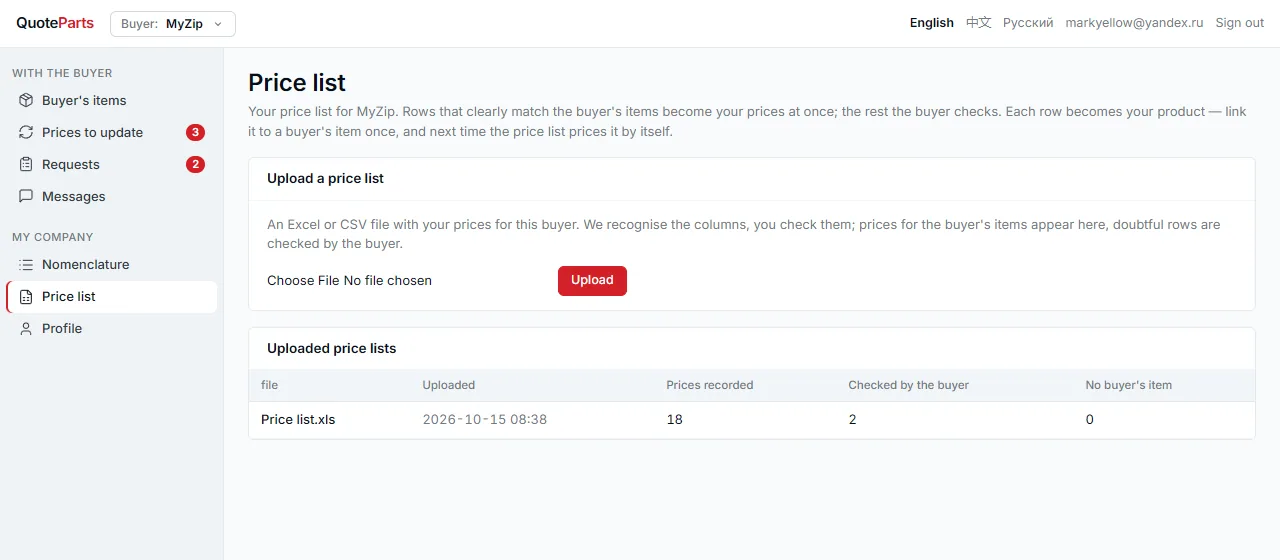
- Open Price list, choose the file and press Upload.
- Check what each column is: part number, name, price, MOQ, your item code. The first rows are shown.
- Give the currency, and if the file has none — the lead time and the validity date for all rows.
- Press Confirm and send.
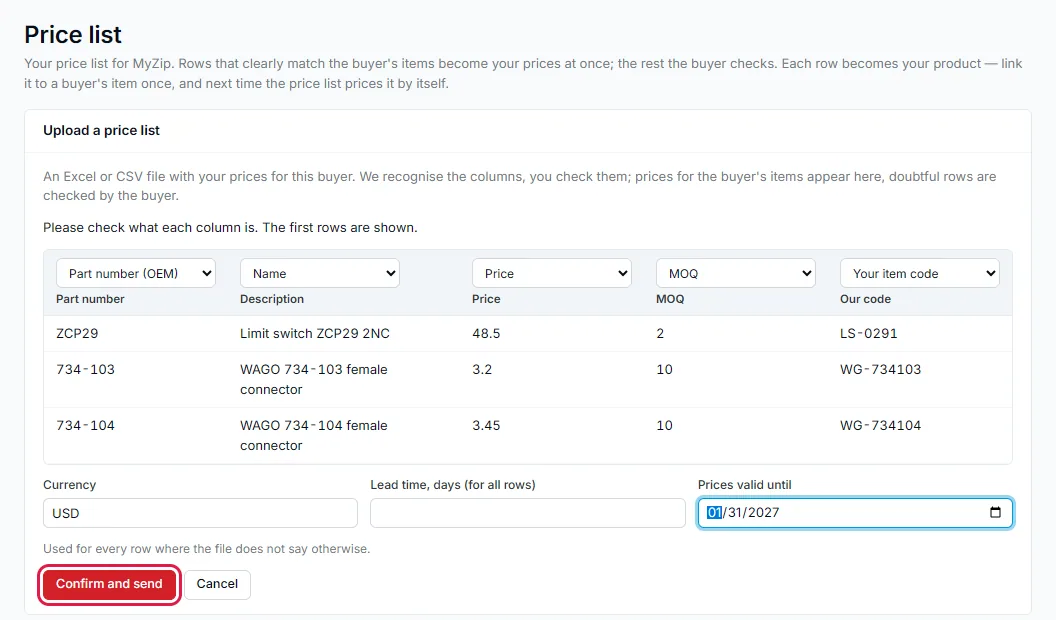
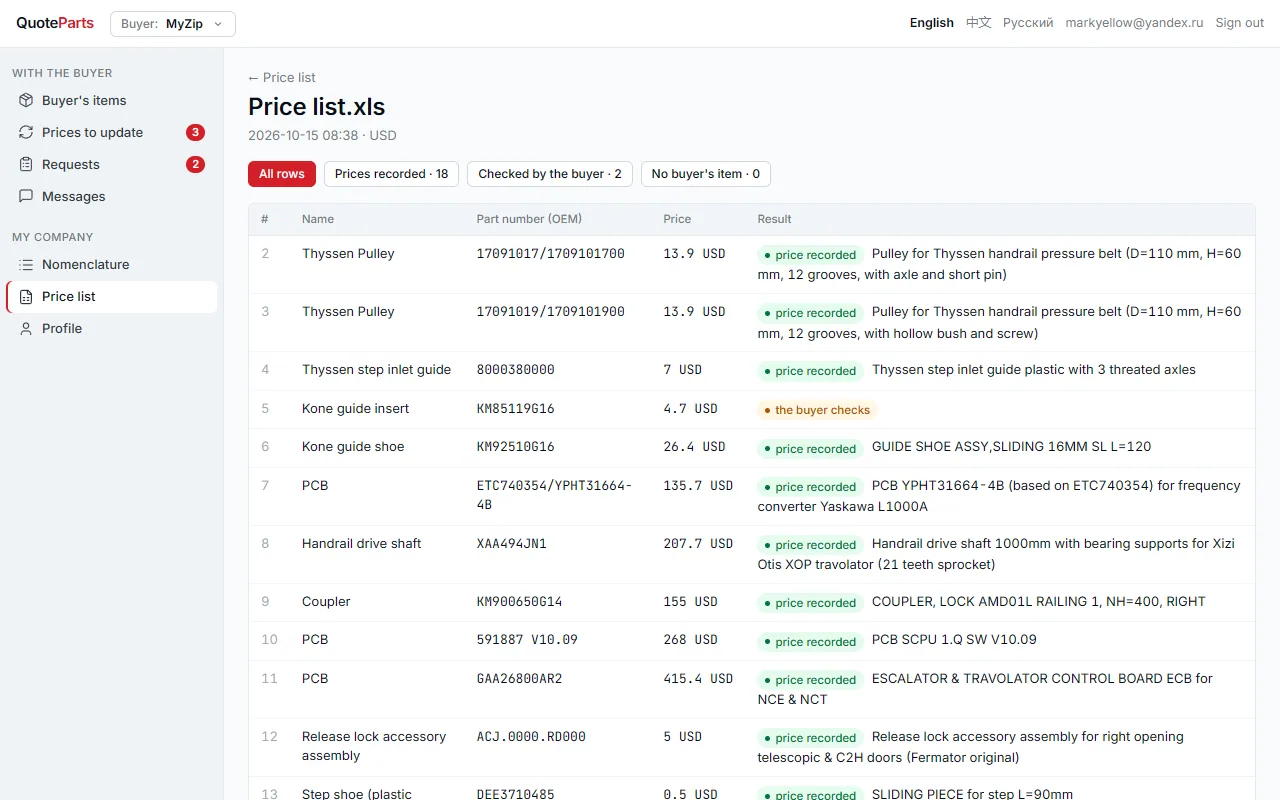
A row is matched to MyZip's item by MyZip's code, your item code or the part number. Clear matches become your prices at once; doubtful rows and prices far from the usual ones MyZip checks. Every upload has its result, row by row:
Keeping prices up to date
Prices to update collects the items asked in open requests and your prices that expire soon or have expired. The red number in the menu shows how many. Give a new price, or extend the old one if it is still right.
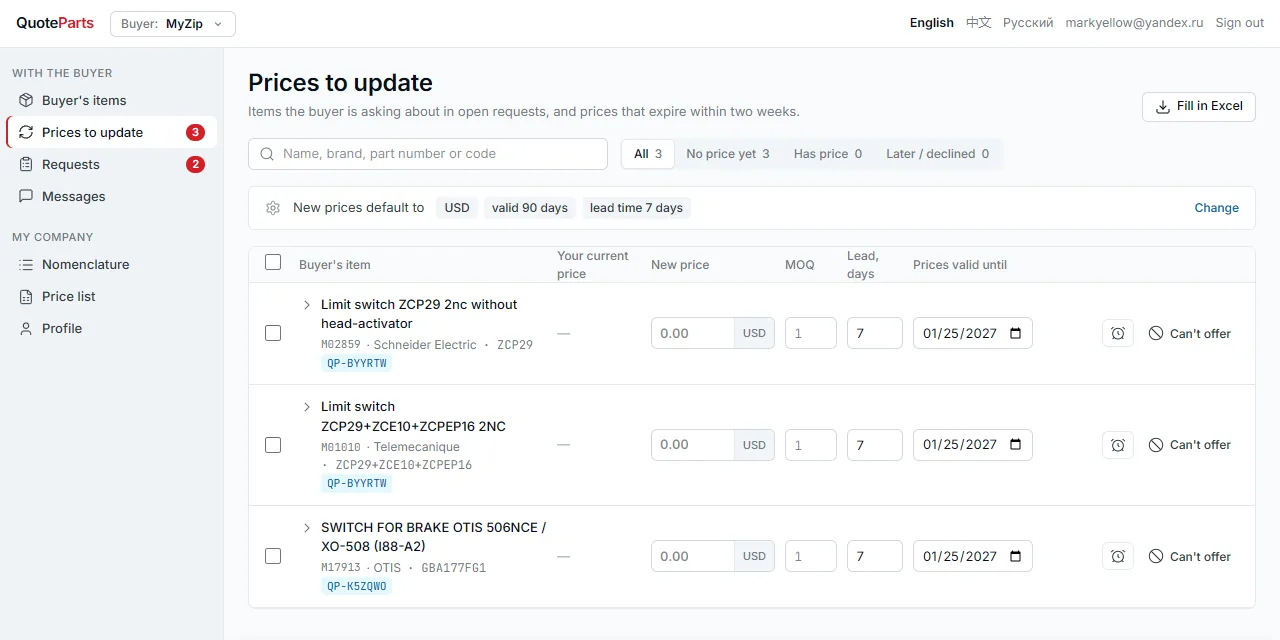
A new price never overwrites the old one: it becomes a new version, the history stays. If MyZip changes an item's description after your price, the offer is marked «The buyer changed the item description» — check it and confirm or give a new price.
Your company
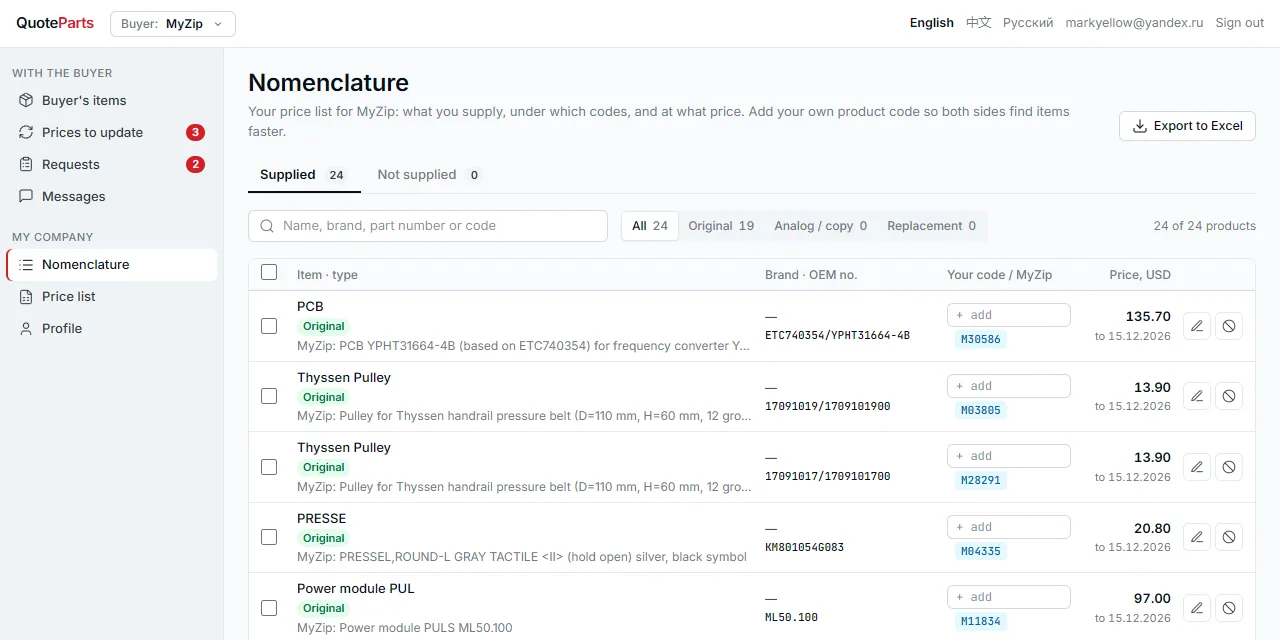
Nomenclature
Your products: what you supply to MyZip, with your own codes. Add a code with «+ add», stop supplying an item with Stop supplying, download the list to Excel.
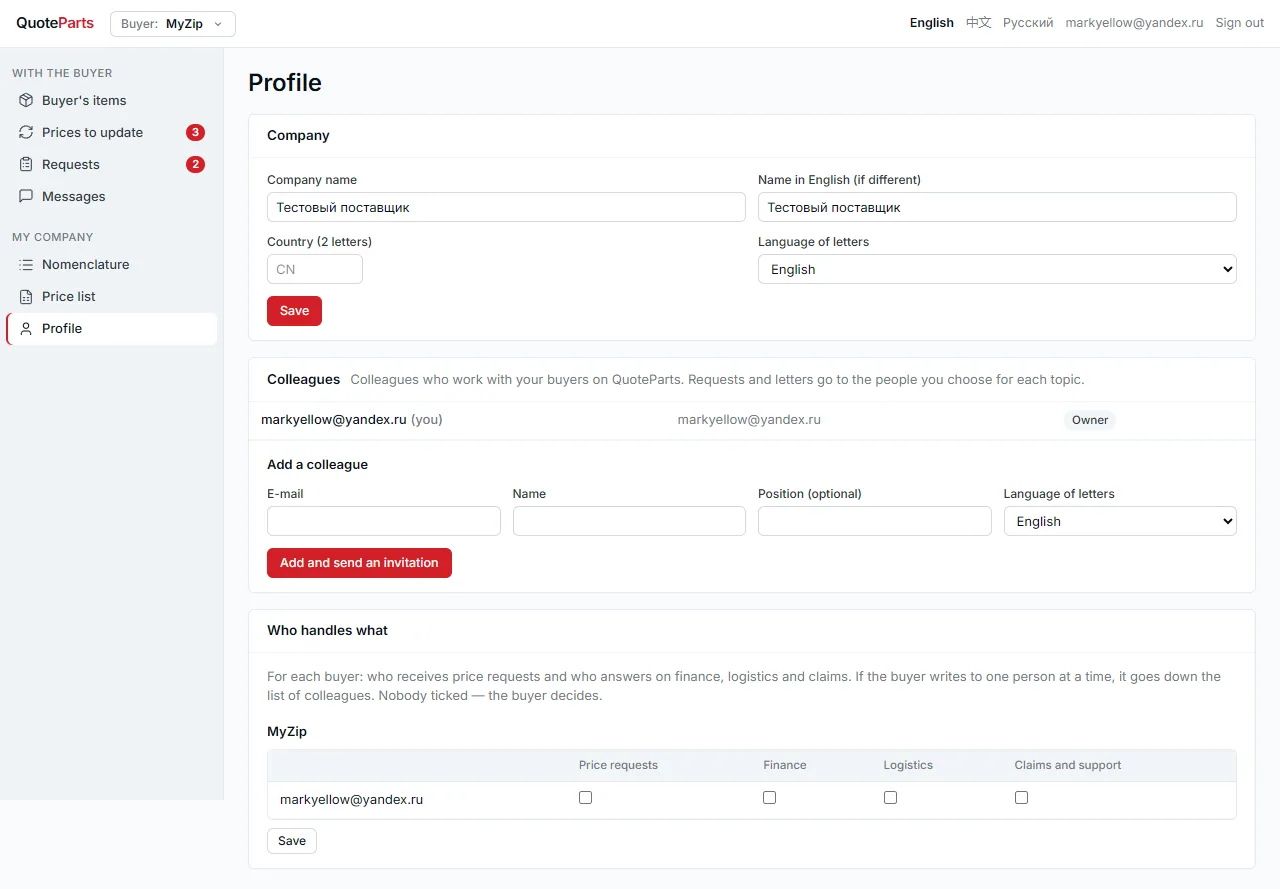
Profile and team
The company name (also in English), the country and the language of letters. The owner of the cabinet adds colleagues — each gets a sign-in link — and decides in Who handles what who receives price requests, finance, logistics and claims.
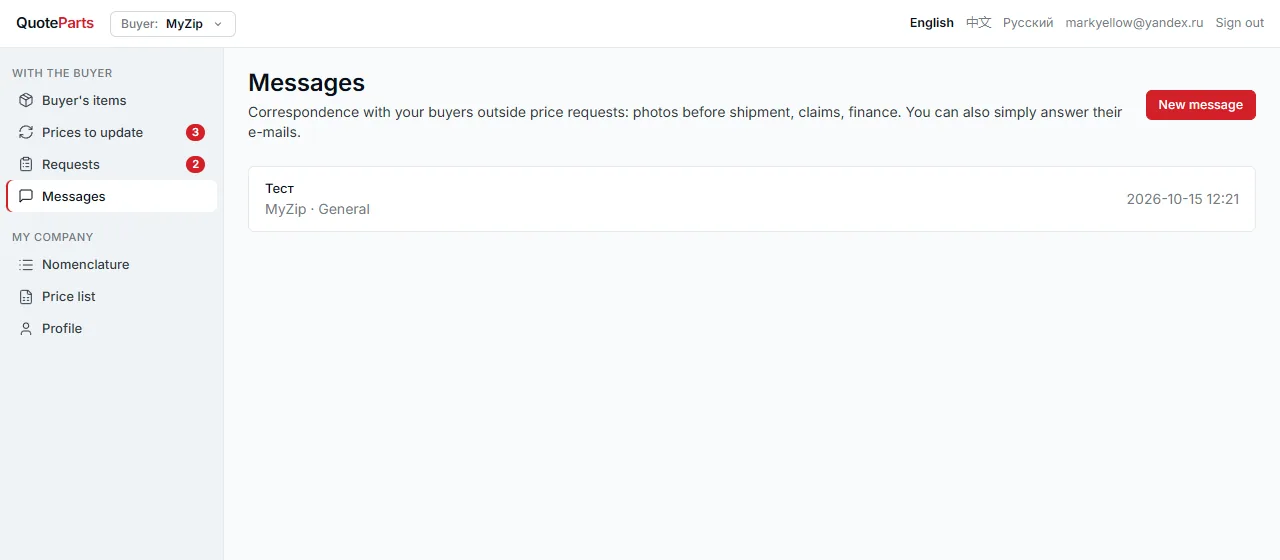
Messages
Conversations with MyZip outside a request: prices in general, payment, delivery, claims. Every new message also comes to your e-mail — reply to it and the answer appears in the conversation.
Questions and answers
Who sees my prices?
Only MyZip. Nobody else sees your prices.
Can I change a price I have sent?
Yes — give a new price for the item at any time. MyZip sees the new one, the old one stays in the history.
What if I answer by e-mail and in the form?
Both reach MyZip. The latest price for the same variant is the one that counts.
The link from the letter does not open the cabinet
After 14 days the link asks for a code: enter your e-mail and type the code from the new letter.
Something does not work
Write to support@quoteparts.net — see Help and support. Or simply reply to any e-mail from MyZip.
Help and support
Cannot sign in, a page does not work, or not sure how to give a price? Write to support@quoteparts.net — in English, Chinese or Russian. Say what you did and what you saw, and attach a screenshot if you can. The answer comes to your e-mail: just reply to it to go on.
A question about a request or an item — the quantity, the part number, delivery — is best asked right there: reply to the request e-mail, or press Ask the buyer on the item. It goes straight to the MyZip manager who handles it.